


When I Work Team Scheduling
4.717.15K Reviews
App Specs
- Version
- 14.7-1761
- Updated On
- License
- Free
- Downloads
- 1,000,000+
- Developer
- When I Work, Inc.
- Categories
- Business
- Platform
- Android, iOS
Screenshots
 Analysis by AppCompare
When I first considered When I Work Team Scheduling, I wanted to know whether it could make the everyday handoff between planning shifts and getting people to show up feel less scattered. It is a business app from When I Work, Inc., built around scheduling and team coordination rather than general-purpose project management. I found its appeal clearest when a team has recurring shifts, changing availability, and too many schedule questions travelling through separate chats. It is free to download, and the app is rated for Everyone, so it is approachable for staff as well as managers.
The First Impressions
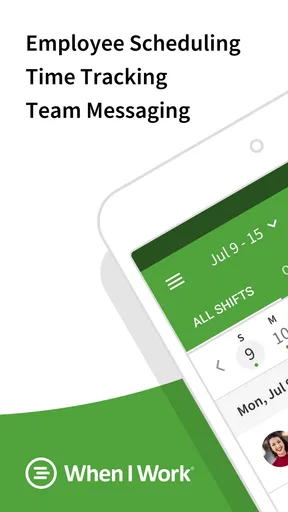
When you first open When I Work Team Scheduling, you’re greeted with a clean and intuitive interface. I appreciate apps that don’t make me feel like I need a degree in rocket science to navigate them. Everything is laid out logically, with tabs for scheduling, messaging, and managing employee availability. It’s like they knew exactly what I needed before I did.
Starting with the right expectations
The first useful distinction is that this is not simply a calendar where a manager posts shifts and everyone else checks them. The schedule, availability, messages, and attendance tools are meant to support the same working routine. That can reduce the little gaps where a staff member sees a change in one place but asks about it somewhere else. It also means the app works best when the whole team agrees to treat it as the place to check for current shift information.
Its focus is practical: helping a business organize employee shifts and communicate about them. If you run a team with regular opening, closing, or weekend coverage, the scheduling approach is likely to feel more relevant than a generic calendar. If you are coordinating occasional appointments, freelance projects, or work that does not follow shifts, a standard calendar may be quicker and less involved.
Setting Up Your Schedule
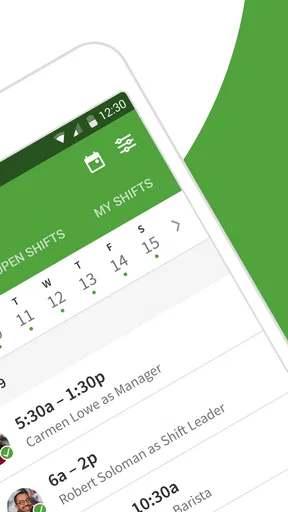
Creating a schedule is as straightforward as it gets. You can drag and drop shifts, making it easy to rearrange as needed. I love how the app lets you clone schedules from previous weeks—perfect for those standard rotations. Plus, you can set up templates for common shifts, saving even more time. It’s like having a personal assistant in your pocket.
For a first setup, I would begin with the team’s usual pattern rather than trying to account for every unusual week immediately. Add the recurring shifts, then use a template for the roles or times that repeat. A copied week is a useful starting point, not a reason to assume that week’s details still apply: check availability and exceptions before sharing it. This small review matters because a schedule that looks familiar can still contain a stale assignment.
A realistic first win is preparing next week’s rota for a small café. A manager can lay in the regular morning and evening coverage, adjust the shifts for a staff member who is unavailable, then publish the plan for everyone to check. Instead of rebuilding the usual pattern from scratch, the repeated structure gives the manager a head start. The meaningful result is not just a neat calendar; it is a shared schedule that staff can refer to when deciding when they need to be at work.
Worth Reading Before You Choose

EA SPORTS FC Mobile 26 Is a Bigger Football Game, but It Takes Time

Flipboard Shows What News Apps Must Do Beyond the Feed

Switching to Android Auto Means Rethinking Your Driving Routine

Google Calendar Makes a Crowded Week Easier to Manage

Ludo King Makes the Most of the Minutes Between Plans

Baby Panda World Brings Quick Play to Modern Phones, but Its Game Library Feels Busy
Communication is Key
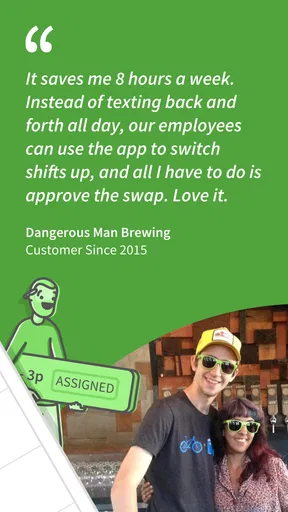
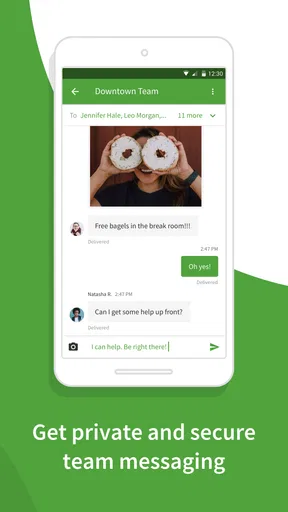
One of the standout features is the in-app messaging. It’s a lifesaver for keeping everyone on the same page. No more endless email chains or missed texts. You can send updates, ask for shift swaps, or just give a shoutout to someone who’s been doing a great job. It’s all about fostering a sense of community within your team, and this app nails it.
The useful habit here is to keep operational messages close to the schedule they concern. If a manager needs to flag a change, sending the note through the team’s work channel can make it easier for employees to connect the message with their shifts. I would still make important instructions explicit: a short, clear note about what changed and which shift it affects is easier to act on than a vague “check the schedule.” Messaging helps keep discussion together, but it does not replace careful wording or a team agreement about where official updates belong.
Compared with a group text, a dedicated work app can make work conversations easier to separate from personal messages. Compared with email, it is more suited to quick shift-related exchanges. The trade-off is that staff must actually check and use it. A team that already has a reliable, agreed communication channel may not gain much by adding another place to look; the improvement comes from consistency, not from having yet another inbox.
Managing Availability
Employee availability can be a nightmare, but not with this app. Staff can easily update their availability, and you get notified instantly. It’s super convenient to have everything in one place, and it definitely reduces the back-and-forth. Plus, you can approve or deny time-off requests directly in the app, streamlining the whole process.
Availability is most helpful when employees keep it current before a manager starts building the next schedule. In practice, this creates a simple workflow: staff update when they can work, the manager checks those constraints while assigning shifts, and time-off requests are handled in the same general routine. It is still worth setting a clear team expectation about when changes should be entered. An app can surface information, but it cannot make an employee submit it early enough for the schedule to be planned smoothly.
There is also a human trade-off. Making availability visible can help a manager avoid preventable conflicts, but it does not settle every question about fairness, preferred shifts, or how often someone should work. I would use the app to make the constraints easier to see, then apply the same scheduling judgement I would use on paper. It is a coordination aid, not a substitute for discussing a difficult staffing decision.
Notifications That Matter
Notifications in the app are customizable, which is a godsend. You can choose to get alerts for schedule changes, messages, or time-off requests. It’s nice not to be bombarded with unnecessary alerts, but still know you won’t miss anything important. It struck a perfect balance for me.
When setting alerts up, I would prioritize changes that affect whether someone needs to work and messages that require a response. If every minor conversation triggers the same urgency, people may start ignoring alerts altogether. Managers can also help by keeping routine chatter purposeful and reserving direct attention for information that affects a shift. The balance depends on the team: employees who check the app frequently may prefer fewer interruptions, while someone who only checks between shifts may want stronger reminders for schedule changes.
Accessibility on the Go
The app is available on both Android and iOS, which means everyone can stay in the loop, whether they’re using a phone or tablet. The synched data ensures that updates are reflected in real-time across all devices. I tested it on both platforms, and the seamless integration was impressive.
That mobile access suits teams whose members are not sitting at a shared office computer. A staff member can check the plan between errands or before leaving home, while a manager can review the rota away from the desk. The practical advice is to make sure everyone knows which schedule is current and to check the app after a change rather than relying on a screenshot saved earlier. Screenshots and printed copies can quickly become outdated when shifts move.
Attendance and the working day
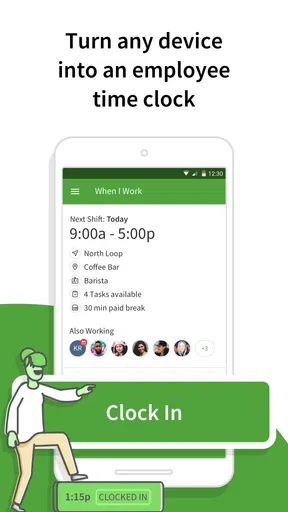
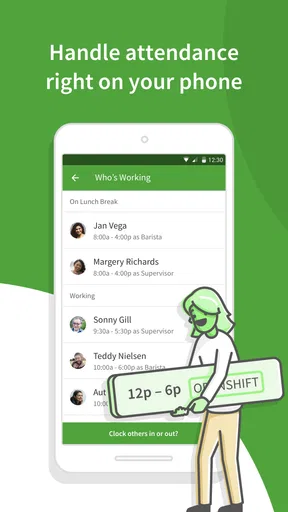
The time-clock and shift-attendance side gives the scheduling tools a more operational purpose. For a manager, it connects the planned shift with the basic question of whether coverage is happening as expected. For an employee, it places shift information and attendance in the same work-focused environment. That can be useful in businesses where managers routinely need to keep track of who is due in, rather than only publishing a rota and moving on.
I would treat this as a process change, not just an app installation. Before relying on a mobile time clock, a manager should explain when staff are expected to use it and what to do if a shift changes. That prevents different people from developing different habits. Teams that already have a required attendance system may prefer to keep it as the official record instead of splitting that responsibility across tools.
Where it fits—and where it does not
With an average rating of 4.8 from around 75,000 ratings, and more than a million installs, When I Work has clearly found an audience among people looking for employee-scheduling tools. Those figures are useful context, but they do not tell me whether it fits a particular team. The deciding factor is whether your work actually revolves around shifts, shared availability, and quick schedule communication.
I would shortlist it for a café, shop, or other shift-based workplace where managers repeat familiar patterns but still need to handle time-off requests and last-minute changes. It is less compelling for a solo worker, a tiny team with an uncomplicated shared calendar, or a business whose staff already rely on a mandatory scheduling platform. In those cases, the extra coordination space may create more steps than it removes.
Against a spreadsheet, the app’s advantage is bringing the schedule and work conversations together rather than asking people to interpret a file and then message a manager elsewhere. A spreadsheet can remain perfectly adequate for a stable team with one person making occasional edits, and it can be easier to customize freely. Against a general calendar, When I Work is more purpose-built for shifts and employee availability; the calendar may be the better choice for appointments or project deadlines that do not involve a rota. The right alternative depends on whether managing shift coverage is a frequent task or an occasional one.
A Few Things to Consider
While When I Work Team Scheduling is packed with features, it might take a little time to explore them all fully. The learning curve isn’t steep, but some features might require a bit of fiddling. However, their customer support is top-notch, and the help center is filled with resources to get you up to speed.
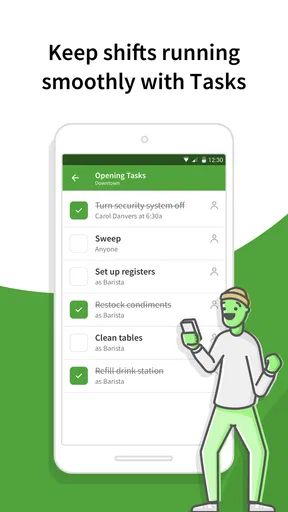
For a new user, I would avoid turning on every part of the workflow at once. Start by setting up the people and recurring shifts, then get the team comfortable checking the schedule. Once that is working, bring availability and time-off handling into the routine, followed by messaging and attendance practices that your workplace needs. A gradual introduction makes it easier to spot whether a snag comes from setup, unclear team expectations, or a feature the business does not actually need.
The app has been available since July 13, 2010, and its current version is 14.3.3-1748, with iOS 11 as the minimum operating-system requirement. I mention that because a first-time user should check that their device can run it before making the app part of a team-wide process. The release history also means it is an established product rather than a newly launched experiment, though any manager should still test the workflow with their own team before depending on it for daily operations.
One common point of confusion is expecting the app to make every schedule decision automatically. Its value is in organizing shifts, availability, messages, and attendance in a connected workflow; the manager still needs to decide who should cover which hours and resolve competing needs. Another is assuming that a posted schedule ends communication. In real workplaces, changes happen, so employees need to know how they will be notified and where to check the latest version.
It is also reasonable to ask whether employees need to be comfortable with apps to benefit. The interface feels approachable, but any shared tool depends on people using it consistently. I would walk the team through one practical task—finding an upcoming shift or checking a schedule update—before expecting everyone to adopt the whole system. That is a better first test than asking staff to explore a long feature list on their own.
Final Thoughts
If you’re tired of the scheduling chaos, When I Work Team Scheduling could be your new best friend. It simplifies the process, enhances communication, and gives you more time to focus on what really matters—running your business. Whether you’re managing a small café or a bustling retail store, this app has the tools you need to keep things running smoothly. Give it a try, and you might just wonder how you ever managed without it.
My recommendation is to judge it by one concrete outcome: can your team find the right shift information without chasing the manager through several channels? If the answer improves after setup, the app is doing useful work. If scheduling is already simple and everyone reliably uses one shared calendar, there may be no reason to change. For shift-based teams that want the rota, availability, and day-to-day coordination closer together, it is a sensible place to start.
Pros
- Intuitive interface for easy navigation.
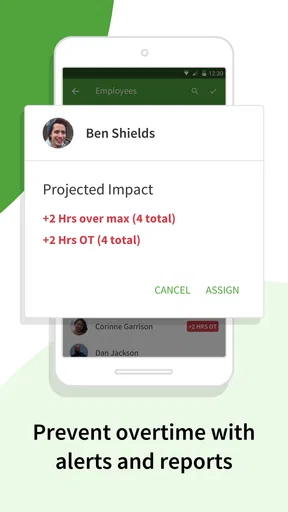
- Real-time shift updates and alerts.
- Seamless integration with payroll systems.
- Efficient communication tools for teams.
- Customizable shift templates save time.
Cons
- Limited offline functionality.
- Occasional sync delays.
- Some features locked behind paywall.
- Complex settings for beginners.
- Limited support for third-party apps.
FAQs for When I Work Team Scheduling
What is When I Work Team Scheduling, and how does it function?
When I Work Team Scheduling is an app designed to simplify employee scheduling, time tracking, and team communication. It allows managers to create and share work schedules easily, while employees can view their shifts in real-time. The app offers features like shift swapping and automated notifications, ensuring seamless coordination and reducing scheduling conflicts.
Is When I Work Team Scheduling free to use?
When I Work offers a free version with basic scheduling features suitable for small teams. For businesses needing advanced options such as time tracking and reporting, there are paid plans available. These offer additional functionalities like payroll integration and enhanced support, making it scalable for growing businesses.
How secure is the data on When I Work Team Scheduling?
The app prioritizes user data security by employing robust encryption protocols and secure servers. Regular security audits and updates ensure protection against vulnerabilities. Users can also manage access controls, ensuring only authorized personnel can view or modify sensitive information, providing peace of mind for businesses.
Can When I Work Team Scheduling be used on both Android and iOS devices?
Yes, When I Work Team Scheduling is available for both Android and iOS platforms. The app is optimized for mobile use, allowing users to access features on-the-go. This cross-platform availability ensures that managers and employees can coordinate schedules seamlessly, regardless of their preferred device.
What kind of support does When I Work Team Scheduling offer?
When I Work provides comprehensive support through various channels, including email, chat, and phone. Users also have access to a detailed help center and community forums for self-service solutions. Premium plan users benefit from prioritized support, ensuring quick resolution of any issues or queries.


